
Desktop Support Dubai in Dubai, UAE
When a business computer becomes slow, unstable, inaccessible or unable to use the applications and shared resources a member of staff needs, the visible problem may be only one part of the fault. FourTeck Desktop Support Dubai is built around identifying what is affected, checking the relevant technical layers, applying approved corrective work and confirming that the user can return to normal business tasks.
Support can be considered for individual workstations, groups of users, new-user setups, recurring desktop faults, operating-system issues, business applications, printers and connected peripherals. The exact work depends on the device condition, software environment, access, business urgency and whether the fault is local to the desktop or connected to network, server, email or security dependencies.
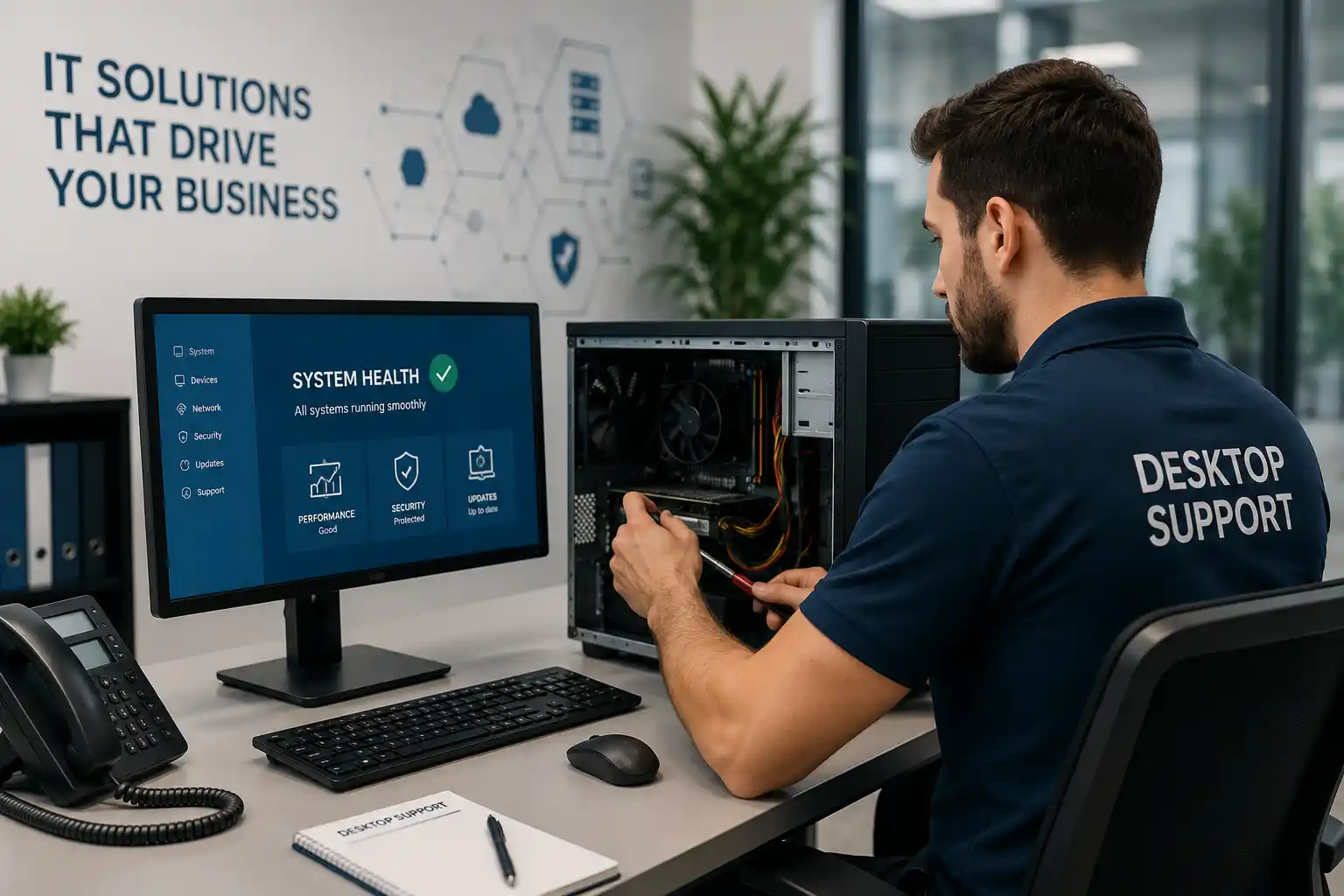
What is Desktop Support Dubai and when is it useful?
Desktop support is technical assistance for workplace computers and the user environment around them. It is mainly used to diagnose faults, restore access, correct approved software or configuration issues, prepare new workstations, connect business resources, assist with peripherals and help management decide whether a recurring problem should be repaired, upgraded or handled as part of a wider infrastructure issue. Businesses should consider it when one or more employees cannot work normally because of computer performance, startup, login, application, printing, email, shared-file, device or connection problems. Before work is confirmed, the customer should be ready to describe the symptoms, affected users, recent changes, device and operating-system details, business impact, available administrative access and any relevant backup or security restrictions. The appropriate service method and quotation depend on the actual environment, required access and whether physical inspection is necessary.
What Desktop Support Can Cover
A desktop is not an isolated box. An employee may rely on the operating system, local storage, user profile, business applications, identity services, network connection, printers, shared folders, cloud platforms, browser access, security software and external devices during a normal working day. A failure in any of these areas can appear to the user as “the computer is not working.” Desktop support therefore begins by defining the actual task that has failed rather than assuming the workstation itself is the only cause.
Operating system and startup
Assistance may include startup problems, update issues, driver conflicts, system instability, user-profile faults, storage pressure and controlled repair or reinstallation planning where appropriate. Significant changes should be considered alongside user data, application requirements and backup availability.
Applications and user access
A user may be unable to open a business application, authenticate, reach a shared resource or use a licensed feature. The desktop, account, application, server and network path may all need to be considered before deciding where the fault sits.
Peripherals and workplace devices
Monitors, keyboards, mice, webcams, headsets, printers, scanners and other connected devices can interrupt work when drivers, cables, ports, power, permissions or application settings are not correct. Physical inspection may be needed for intermittent or hardware-related faults.
Connectivity and shared resources
Desktop access can depend on wired or wireless networking, name resolution, address assignment, firewall rules, server availability and internet service. A local symptom should not be treated as proof of a local computer problem.
Who May Need Business Desktop Support
Desktop support can be relevant to a small office with a handful of workstations, a growing company standardising employee computers, a branch where staff need local assistance, or a larger organisation that needs project help for deployments, relocations or repeated endpoint problems. The important factor is not company size but the business dependence on the affected computers.
Finance teams may need stable access to accounting platforms, shared reports and printers. Customer-service or reception staff may depend on browser applications, email, headsets and rapid login. Design or technical users may rely on higher-performance workstations and specialised applications. Warehouse and operations teams may use desktops for inventory, dispatch, labels or reporting. Managers may depend on secure access to cloud applications, shared files and communication tools. Each role creates a different support priority, so the service should be defined around the user’s actual workflow rather than a generic computer checklist.
Desktop support may also be useful during employee onboarding, when a workstation must be prepared with authorised applications, appropriate access, printers, security controls and business resources. During offboarding or device reassignment, the customer may need help following its own access-removal, data-handling and asset procedures. The exact responsibility for accounts, data retention and authorisation should be confirmed before changes are made.
Common Desktop Symptoms and What They Can Indicate
The same symptom can come from different technical layers. A slow computer may have limited local resources, a failing storage device, heavy background processes, an application problem, malware concerns, a congested network path or a slow cloud service. A failed login may relate to the local user profile, password state, identity service, network connection or application authentication. For this reason, useful desktop support separates observation from diagnosis.
| Observed issue | Possible technical areas | Recommended next step |
|---|---|---|
| Very slow startup or login | Storage health, startup tasks, user profile, updates, network or identity dependency | Record when the delay occurs and compare local versus network-dependent stages. |
| Application closes or reports errors | Application files, user profile, operating system, licence, permissions or back-end service | Capture the error and confirm whether other users or devices are affected. |
| Printer unavailable from one computer | Driver, spooler, port, network path, permissions or printer state | Check whether the printer works for another authorised user before changing wider settings. |
| Shared folder cannot be opened | Network connection, DNS, server availability, credentials or permissions | Identify whether the failure is user-specific, device-specific or site-wide. |
| Unexpected restart or blue-screen event | Driver, update, hardware, storage, memory or operating-system fault | Preserve error information and avoid repeated disruptive changes before assessment. |
| Desktop loses network connection | Cable, adapter, switch port, address assignment, Wi-Fi, firewall or wider network | Compare the affected desk with nearby devices and note whether wired and wireless paths behave differently. |
Business Impact of Repeated Desktop Faults
A desktop problem may appear small because it affects one screen and one employee, yet the business effect can be wider. A receptionist who cannot open the booking application may delay customer service. A finance user who loses printer access may interrupt document processing. A salesperson who cannot reach shared files may wait for another employee to forward information. A workstation that crashes several times per day can create lost time even if each restart is brief.
Repeated faults also create hidden support cost. Colleagues may stop their own work to help. Users may create unofficial workarounds, copy files to unapproved locations or change settings without understanding the dependency. Managers may replace equipment prematurely because the root cause has not been isolated. A structured support process helps distinguish a desktop that needs correction from a wider problem involving the network, application, server, licence or user account.
The aim is not to claim that every interruption can be removed. Hardware can fail, applications can change, user requirements evolve and third-party platforms may experience problems. The practical objective is to reduce uncertainty by documenting what happened, identifying the affected layer, applying authorised work, validating the original business task and recording what should happen next if the fault returns.
Possible Desktop Support Scope
Depending on the confirmed scope, FourTeck assistance may include an initial consultation, remote diagnosis, on-site inspection, user interviews, workstation health checks, operating-system review, application troubleshooting, driver checks, storage and memory assessment, account and permission review, printer or scanner connectivity, network testing, security-setting review, approved software installation, update troubleshooting, new-user preparation, device relocation, configuration documentation and practical replacement or upgrade guidance. Not every item is included in every request.
Fault diagnosis
Define the symptom, reproduce it where practical, compare affected and unaffected users, review recent changes and narrow the technical area before changing settings.
Corrective configuration
Apply approved changes to software, accounts, drivers, connections or workstation settings when the cause and risk are sufficiently understood.
Workstation preparation
Prepare business desktops for users with authorised applications, access, printers, shared resources and customer-approved security requirements.
Lifecycle guidance
Help distinguish supportable configuration problems from ageing hardware, capacity constraints or compatibility issues that may justify planned upgrade or replacement.
Desktop Support Service Information
| Service topic | Desktop support for business workstations and users in Dubai and the UAE. |
|---|---|
| Main purpose | Troubleshoot user-device faults, restore approved business functions, prepare workstations and improve maintainability. |
| Typical systems involved | Desktop hardware, operating systems, applications, user profiles, printers, shared resources, wired or wireless networking and security tools. |
| Remote support suitability | Suitable for many software, account, application, configuration and diagnostic tasks when secure access and internet connectivity are available. |
| On-site support suitability | May be required for physical hardware checks, peripherals, cabling, workstation installation, intermittent physical faults or inaccessible systems. |
| Customer access required | Access dependent. Authorised user and administrator access may be needed according to the task. |
| Testing and validation | Scope dependent. Testing should include the original affected user task and relevant connected resources. |
| Documentation and handover | May include completed actions, findings, remaining risks, user guidance and recommended next steps. |
| Vendor coordination | Vendor dependent. Some software, warranty, cloud or hardware faults may require third-party action. |
| Quotation requirement | The final commercial scope depends on affected devices, access, location, complexity, urgency and approved work. |
Remote Desktop Support or On-Site Assistance?
When remote support may be practical
Remote support can be efficient when the desktop starts normally, internet connectivity is available, secure remote access is authorised and the problem relates mainly to applications, user settings, accounts, updates, logs or configuration. A user or administrator may need to remain available to describe the symptom, approve access, restart an application or confirm whether the original business task works after changes.
Remote access should not be treated as automatic permission. The customer should confirm identity, authorisation and an approved secure method before credentials or access are shared. Passwords should not be sent through a public page or casual message.
When an on-site visit may be more suitable
On-site assistance may be recommended when the workstation will not power on, physical components need inspection, cables or ports need testing, a new computer must be installed, peripherals are intermittent, the system cannot be reached remotely or several local devices show a related problem. Physical noise, overheating, damaged connectors and site-specific network conditions are also easier to assess in person.
Attendance timing depends on engineer availability, customer access, site conditions, location and the confirmed work scope. A visit should be planned with enough information to avoid arriving without the necessary access, approvals or parts.
How the Desktop Diagnostic Process Can Work
- Confirm the business impact. Identify what the user is trying to do, what has stopped working and whether there is an alternative workflow.
- Define the affected scope. Determine whether the problem follows one user, one computer, one application, one desk, one department or a wider site dependency.
- Collect evidence. Record error messages, screenshots where appropriate, event timing, recent updates, application behaviour, connection status and relevant device details.
- Review access and risk. Confirm authorisation, administrative access, backup status, data sensitivity and whether a maintenance window is needed before disruptive work.
- Test the likely layers. Examine the workstation, operating system, profile, application, network path, connected resources and peripherals according to the symptom.
- Isolate the likely cause or scope. Compare working and non-working conditions rather than changing several variables at once.
- Explain available actions. Clarify which changes can be attempted, what depends on a third party and whether repair, reconfiguration or replacement planning is more appropriate.
- Apply authorised work. Make controlled changes within the agreed scope and preserve rollback or recovery options where relevant.
- Validate the user task. Re-test the exact operation that previously failed rather than relying only on a generic technical check.
- Document next steps. Record completed work, remaining dependencies, user guidance and any monitoring, maintenance or replacement recommendation.
Planning Corrective Work Without Creating New Problems
Desktop troubleshooting should avoid random changes. Removing software, changing security settings, resetting profiles or reinstalling an operating system can affect user data, business applications, licences, device drivers and access to shared resources. Before a significant change, the business should understand what information must be preserved, what credentials or licence details are required, what recovery option exists and how the user’s essential applications will be restored.
Where a workstation is still functioning, it may be possible to collect configuration information and verify backups before corrective work. Where the computer is unstable or storage failure is suspected, the priority may change toward protecting recoverable business data and limiting unnecessary write activity. No service page can promise data recovery because recoverability depends on the condition of the storage device, previous backup arrangements and the type of failure.
For new desktops, planning should start from the user role. The required business applications, account method, shared folders, printers, browsers, communication tools, peripheral requirements, security controls and data-transfer needs should be known before handover. This reduces repeated visits caused by missing dependencies after the employee begins work.
Testing, Validation and User Handover
A technically successful change is not complete until the user’s actual business task has been checked. If the original problem was a slow login, the relevant test is the login experience under normal conditions. If the issue was a printer used for invoices, a realistic print test matters. If a shared folder failed, the user should confirm the intended location opens with the expected permissions. Validation should be specific enough to show that the reported symptom has changed without assuming that every unrelated function has been tested.
Handover may include a short explanation of what was found, what was changed, what the user should watch for and what information to capture if the problem returns. For a newly prepared desktop, handover may include confirming authorised applications, printers, email, shared resources, browser access and peripheral operation. Administrators may also need records of device names, key configuration notes, warranty or asset references and any follow-up action.
Where a third-party provider remains involved, the handover should identify the dependency clearly. For example, a desktop may be functioning correctly but still unable to use a cloud service that is unavailable or a licensed application that requires vendor action. Clear separation prevents a local workstation from being repeatedly changed for a problem outside it.
Capability Focus: Faster Fault Isolation Through Comparison
One of the most useful desktop-support techniques is comparison. If an application works for one user but not another, that observation narrows the investigation. If the same user can work correctly on another computer, the fault may follow the original workstation rather than the account. If several desktops lose access at the same time, a shared dependency becomes more likely. This comparison-led approach helps avoid unnecessary replacement or reinstallation when the evidence points elsewhere.
The method depends on having reliable reference points. An unaffected user, a known-working device, a second network path or a recent configuration record can help. In a completely undocumented environment, the first support engagement may therefore spend more time establishing what normal looks like. That effort can improve future troubleshooting because the business gains a clearer baseline.
Fault isolation does not mean guessing the most common cause. It means forming testable possibilities and reducing them using evidence. For a business, the outcome is a more understandable explanation of why a specific action is recommended and what would be checked next if the action does not change the symptom.
Capability Focus: Standardised Workstations Are Easier to Support
When every employee computer has a different collection of applications, browser settings, local accounts, printer connections and update states, troubleshooting becomes slower because there is no common baseline. A practical level of standardisation can make day-to-day support more predictable. This may include agreed device naming, approved applications, expected update practices, endpoint protection, browser configuration, printer deployment, shared-resource mapping and user access methods.
Standardisation should reflect real job roles rather than force every user into one identical build. A designer, finance user, receptionist and warehouse operator may need different applications and peripherals. The objective is to create controlled variations that are documented, supported and aligned with business requirements. Legacy software, specialised hardware and licensing can limit how far standardisation is practical.
For growing businesses, this can improve onboarding because new employees receive a workstation prepared against an agreed role profile. It can also improve replacement planning because managers know which applications, ports, monitors or performance requirements must be preserved when old devices are retired.
Capability Focus: Better Documentation Reduces Repeat Investigation
A desktop issue is harder to solve when nobody knows which applications are business-critical, where user files are stored, which printer a department uses or whether a previous technician changed a setting. Technical documentation does not need to become a complex manual for every workstation. Even concise records can make future support faster and safer.
Useful records may include device names, asset references, operating-system details, assigned user or role, major authorised applications, unusual peripheral requirements, network connection type, warranty information, known exceptions and recent support history. Sensitive credentials should not be placed in ordinary documentation; they should be managed through an approved secure process.
Documentation also supports management decisions. If several incidents are linked to the same ageing device type, storage limitation or unsupported application, the business can plan corrective work rather than treating each ticket independently. The value comes from turning repeated support activity into evidence for maintenance, upgrade and standardisation decisions.
Dependencies, Access and Customer Inputs
Desktop support often depends on systems beyond the workstation. A user may authenticate through an identity service, open files from a server, connect to a cloud application through the internet, print to a network printer and use security controls managed centrally. Before work begins, it helps to identify which parties control these dependencies and who can authorise changes.
Customers may need to provide the business location, affected users, workstation details, operating-system information, application names, exact symptoms, error messages, when the issue began, recent changes, internet or network status, existing service providers, backup status, authorised administrative access, building access for on-site work and the desired business outcome. If vendor portals, subscription information or software licences are relevant, their availability should be confirmed.
Passwords, private keys and other sensitive credentials should not be submitted through public website content. When access is required, the customer should use an approved secure sharing method after identity and authorisation have been confirmed. The business is responsible for ensuring that the person requesting support is permitted to authorise access and changes to the affected systems.
Risks, Limitations and Exclusions to Understand
Diagnosis depends on the evidence and access available. Some faults may require action from a software vendor, internet provider, cloud provider, manufacturer, warranty partner or another administrator. A desktop that has failed hardware may need parts or replacement outside the labour scope. Unsupported or legacy software can limit available repair and security options. Configuration changes may require a maintenance window, user downtime or a backup and rollback plan.
Data recovery cannot be guaranteed. A successful test after repair does not remove the need for future maintenance, patching, backup or monitoring. Security improvements can reduce risk but cannot guarantee complete protection from every threat. On-site work depends on location, building access, scheduling, site conditions and the confirmed task. Final commercial terms depend on the approved quotation or service agreement.
When replacement equipment, software subscriptions or third-party services are required, these should be clearly identified and approved rather than assumed to be included. Contact FourTeck to confirm the scope that applies to the specific desktop, user group or site.
Desktop Support for Different Business Environments
Professional offices
Employees may depend on email, shared documents, printing, browsers, video meetings and line-of-business software. Consistent workstation configuration and user access can reduce routine support friction.
Retail and customer-facing sites
A failed desktop can interrupt billing, reporting, inventory lookup or customer service. Support planning should consider which functions are operationally critical and what alternative process exists during maintenance.
Warehouses and operations
Workstations may interact with label printers, scanners, inventory systems and shared network resources. Physical environment, cabling and peripherals can be as important as the operating system.
Clinics and service businesses
Desktop availability can affect appointments, administration and communication. Access controls, data-handling responsibilities and software-provider dependencies should be understood before changes are made.
Project offices and temporary sites
Fast-changing user counts and equipment moves can create configuration drift. Device naming, connectivity, printer setup and documented handover become especially useful.
Multi-branch organisations
A consistent baseline can make support easier across branches, but local internet, printers, network design and site access may still create location-specific dependencies.
Operational, Security and Maintenance Considerations
Desktop reliability is influenced by routine maintenance as well as incident response. Operating-system updates, application updates, endpoint protection, storage capacity, hardware age, cooling, backups and account management all affect the supportability of a workstation. The correct maintenance approach depends on the organisation’s applications, risk tolerance, working hours and administrative model.
Security should be treated as part of normal desktop operations. Users should have the access needed for their role without unnecessary administrative privilege. Endpoint protection, browser and application updates, approved software, secure account practices and controlled remote access can reduce avoidable exposure. However, no single setting makes a workstation completely secure, and security changes can also affect compatibility. They should be planned, tested and documented.
Businesses should also know where important user data is stored. Some files may live locally, others on shared servers or approved cloud platforms. A workstation replacement or operating-system reinstallation should not begin with assumptions about data location. Backup status and the business owner of the data should be confirmed before destructive or irreversible work.
Before You Contact FourTeck for Desktop Support
Providing useful information at the start can shorten the time needed to understand the situation and helps determine whether remote or on-site support is more appropriate.
- The Dubai or UAE service location and site access details.
- The main on-site or business contact person.
- The number of users and desktops affected.
- The exact task that is failing or performing poorly.
- Any visible error messages or screenshots available.
- When the problem began and how often it occurs.
- Recent updates, application changes, moves or hardware additions.
- Desktop make, model and operating-system details if known.
- Whether nearby users or devices show the same problem.
- Current network and internet status.
- Whether authorised administrator access is available.
- Relevant software licence or vendor details.
- Backup status for important business data.
- The business impact and priority of the issue.
- Any security or change-approval restrictions.
- The expected outcome you want the support work to achieve.
Desktop Support Scope Checklist for a Quotation
A quotation is clearer when the engagement boundary is understood. Before approving work, confirm which of the following points apply to the request.
These points define the engagement; they do not imply that every task is included automatically. The confirmed quotation should state the work to be performed and any important exclusions or dependencies.
How FourTeck Can Assist
FourTeck can help clarify the reported desktop problem, identify the affected technical layer, organise remote or on-site assistance, review user and device requirements, define configuration work, coordinate with relevant service providers, test approved changes and document completed work. Support can also contribute to workstation standardisation, new-user preparation, office moves, hardware-refresh planning and ongoing maintenance where these are part of the agreed scope.
The process can begin with a description of what the employee cannot do, how many users are affected, when the issue started and what changed recently. From there, the support method can be chosen based on evidence and access. If the problem can be investigated safely through remote access, an on-site visit may not be required. If physical equipment, cabling or local testing is involved, a site visit may be recommended.
A clear quotation should distinguish the initial assessment from approved corrective work where appropriate. It should also identify known third-party dependencies, replacement requirements or project tasks that are outside the initial troubleshooting scope. This gives the customer a practical basis for authorising the next step.
Dubai and UAE Desktop Support Coordination
For a Dubai business, the service plan should reflect whether the issue can be investigated remotely or requires physical access to the workstation and office environment. A remote session can be practical for software, application, account and configuration issues when connectivity and authorisation are available. On-site support may be more suitable when hardware, cabling, peripherals, multiple local computers or installation work must be checked.
Contact FourTeck to confirm the service scope and scheduling options. Timing depends on engineer availability, customer access, building requirements, site conditions, required parts, third-party providers and the approved work. If a desktop issue affects a critical business process, explain the operational impact clearly so the support request can be scoped around the real priority rather than only the technical symptom.
For planned workstation projects, such as a staff expansion or office move, advance information about user counts, application requirements, site readiness, network connections, account access and device availability can reduce last-minute dependencies. Installation, configuration, migration and maintenance tasks should be explicitly included in the quotation rather than assumed.
Desktop Support Across Dubai, Abu Dhabi, Sharjah and Ajman
Businesses operating across Dubai, Abu Dhabi, Sharjah and Ajman may need a combination of remote troubleshooting and planned on-site coordination. A user-access or software issue may be suitable for remote review, while a workstation installation, hardware inspection, cabling problem or site-wide peripheral fault may need local physical work. Multi-site customers can benefit from documenting device roles and support history so recurring problems can be compared across locations.
The practical service plan depends on where the affected equipment is located, who can provide access, whether building or security approvals are required, whether parts or replacement devices are available and whether other providers need to participate. Travel and scheduling may also affect on-site planning. FourTeck can review the request and advise whether it should begin remotely, be scheduled as a site visit or be handled as a wider project with several workstations or locations.
Related FourTeck IT Services
A desktop problem may connect to a wider business system. The following FourTeck resources can help when the issue goes beyond one workstation.
Review operating-system, profile and workplace-computer assistance within FourTeck’s service portfolio.Office network support
Useful when several desktops share connectivity, address, switch, cabling or internet problems.Server and shared-resource support
Relevant when users cannot reach files, applications, identity services or other central resources.Business IT support services
Explore broader troubleshooting, maintenance, infrastructure and project assistance.
You can also review FourTeck IT support for Dubai and the UAE or read about FourTeck IT Services before requesting an assessment.
Why Businesses Contact FourTeck for Desktop Assistance
Businesses often need more than a quick answer to a computer symptom. They need to know whether the fault belongs to the desktop, the user account, the operating system, the application, the network, a server or a third-party provider. FourTeck’s broader IT-service context allows the workstation to be assessed as part of the connected office rather than as an isolated device.
The value of this approach is practical coordination. A desktop that cannot reach a shared folder can be checked from the user side while the network and server dependency are considered. A printer issue can be compared across users before drivers are repeatedly changed. A slow application can be tested against local performance, network behaviour and service availability. Findings can then be explained in business language so the customer understands what is known, what remains uncertain and what action is sensible.
FourTeck can also help structure work that goes beyond a single fault, including workstation preparation, office moves, user onboarding, documentation, hardware-refresh planning and maintenance discussions. The exact service scope remains subject to assessment and an approved quotation.
Questions Businesses Ask Before Requesting Desktop Support
Customers often search for desktop help only after a user has already lost time. The most useful next step is to turn a vague complaint into a clear support request. The following questions address common decision points before contacting a provider and help define whether the issue is likely to need remote investigation, physical inspection, a planned change or a wider IT assessment.
Can a slow office computer be checked remotely?
Often, yes, if the computer can start, the internet connection is working and secure remote access is authorised. A technician may be able to review running processes, storage usage, updates, event information, application behaviour and user settings without visiting the site. However, a remote session cannot physically inspect a noisy fan, damaged cable, failing port, loose component or other hardware condition. If the evidence points toward physical failure, on-site assessment or replacement planning may be the better next step.
How do we know whether the problem is one PC or the whole office?
Start by comparing the affected user with nearby users performing the same task. If only one computer cannot open a website while other devices on the same network work normally, the investigation can begin at that workstation. If an entire department loses the same application or shared folder, the likely scope becomes wider. Time correlation is also valuable: several users failing at the same moment often points toward a shared dependency. Do not reset network equipment or change multiple computers simply because the first user noticed the issue at a desktop.
Should we repair an old desktop or replace it?
That decision depends on the fault, business workload, hardware condition, software requirements, supportability and cost of repeated disruption. A device with a minor replaceable component may remain suitable for its role. A workstation that is consistently underpowered, incompatible with required software or experiencing repeated hardware problems may be a poor candidate for further investment. A support assessment can help management compare repair effort with a planned replacement, but the final decision should consider the user’s real workload and any application or peripheral compatibility requirements.
What information should we collect before asking for support?
Capture the exact error message, the user’s description of what happened, the time it began, whether it is constant or intermittent and whether another user can reproduce it. Note recent updates, software installations, desk moves or network changes. If possible, identify the workstation model, operating system, application involved and business impact. Also confirm who can approve administrative access. This information lets FourTeck determine whether the issue can start with a remote session or requires a site visit.
Is desktop support only for faults, or can it include new employee setup?
Desktop support can also be used for planned workstation preparation when that work is included in scope. A new employee may need an authorised computer, user account, business applications, email, shared folders, printers, browser access, security controls and peripherals. Preparation is more reliable when the role requirements are known in advance. Account creation, licence allocation and access approvals may depend on the customer’s existing systems and internal authorisation process.
When is an on-site visit usually needed?
An on-site visit is more likely when physical equipment must be inspected, a desktop will not start, the problem may involve cabling or a local switch port, peripherals need hands-on testing, several computers at the same location are affected or a new workstation must be installed. It can also be useful when the fault is intermittent and tied to the physical environment. The visit should be arranged with site access, user availability and any required replacement components considered in advance.
Can desktop support fix printer problems too?
It can help investigate printer access from the workstation when this is part of the agreed request. The issue may involve a driver, print queue, network path, permission, cable, USB port, printer address or the printer itself. A useful first check is whether other authorised users can print successfully. If nobody can use the device, the problem may belong to the printer or network rather than one desktop. Physical printer faults, consumables or replacement parts may require separate action.
What if the desktop works but one business application does not?
The investigation should focus on the application path without assuming the computer is healthy or faulty. The problem may relate to local application files, the user profile, permissions, a licence, an update, a database, a server, the browser, network access or a vendor service. It helps to compare another user or device and record the exact error. If a third-party application vendor controls the back-end service, FourTeck may need to coordinate technical information rather than make unsupported changes locally.
Do we need backups before desktop troubleshooting?
Not every diagnostic check requires a backup, but the backup position should be understood before work that could affect data, profiles, storage or the operating system. If the device holds important local files, confirm how those files are protected before a reinstallation, reset or storage replacement. A backup that has never been checked should not automatically be assumed usable. The required protection depends on the planned action and the importance of the data.
Can one-time support become ongoing maintenance?
Yes, a business may decide after an incident that recurring device checks, update planning, documentation or broader user support would be useful. Ongoing support should have a clearly agreed service plan that identifies covered users, devices, locations, channels, exclusions and chargeable work. It should not be assumed that a one-time troubleshooting request includes unlimited future assistance. FourTeck can discuss a maintenance requirement after the current environment and business needs are understood.
What can affect the final desktop support quotation?
The quotation may depend on the number of affected devices, the complexity of the fault, remote versus on-site work, location, access conditions, need for vendor coordination, data-transfer requirements, software installation, replacement components, testing, documentation and scheduling. A fault that appears to involve one desktop may expand if several systems or a shared network dependency are discovered. The scope should therefore be confirmed from evidence rather than priced from the symptom alone.
What happens after a desktop issue is fixed?
The original user task should be tested, not just the technical setting that was changed. The user may need to confirm that the application opens, the printer works, the shared folder is accessible or performance is acceptable for the required job. Where useful, the work should be recorded along with any remaining risk or recommendation. If the incident revealed an ageing device, missing backup, undocumented application or recurring configuration problem, those findings can become planned improvement actions rather than being forgotten after the immediate fault disappears.
How should a Dubai office decide between urgent troubleshooting and planned desktop improvement?
If staff cannot perform essential work, the immediate goal is to understand the fault and restore an approved working path with the least unnecessary change. If the desktops are functioning but incidents repeat, performance is declining or the business is expanding, a planned assessment may be more appropriate. Planned work allows user roles, application requirements, hardware age, standardisation, security controls, data handling and replacement priorities to be considered together. Both cases start with clear information about business impact and the current environment.
Frequently Asked Questions About Desktop Support Dubai
What does desktop support include?
Depending on scope, it may include fault diagnosis, operating-system and application troubleshooting, account or profile checks, peripheral support, network connectivity review, workstation preparation, approved software configuration, testing and documentation.
Can FourTeck support one desktop?
A request can begin with one affected user or computer. The assessment may show that the fault is local or that it involves a wider shared dependency. The final work is confirmed from the actual scope.
Is remote access always required?
No. Remote access is useful for many software and configuration problems but depends on customer authorisation, secure access and working connectivity. Physical faults may need an on-site visit instead.
Can support include Windows problems?
Yes, desktop support can include Windows-related startup, profile, update, driver, storage, application and connectivity issues when these tasks are within the approved service scope.
Can you guarantee data recovery?
No. Recoverability depends on the failure, storage condition, previous backups and other technical factors. Data protection should be considered before disruptive or destructive repair work.
Can a desktop fault actually be a network issue?
Yes. Shared folders, cloud applications, printers, identity services and internet access depend on the network. Comparing other users and devices helps determine whether the workstation is the correct place to focus.
Do you provide on-site desktop support in Dubai?
On-site assistance may be arranged when physical inspection or local work is required. Scheduling depends on the location, access, engineer availability, site conditions and confirmed quotation.
Can desktop support cover new-user setup?
It may include preparing a workstation with authorised applications, accounts, printers, shared resources and required settings. Access approvals and licence availability must be confirmed.
What should we avoid doing before support?
Avoid broad resets, repeated forced changes or destructive reinstalls when important data, applications or configuration are not backed up. Preserve error information and note recent changes where possible.
Can FourTeck coordinate with an application vendor?
Vendor coordination may be possible where the issue depends on third-party software, licensing or hosted services. The extent of coordination should be included in the agreed scope.
Is replacement hardware included?
Replacement parts or devices should not be assumed to be included. If hardware failure is identified, any required equipment, procurement or installation work should be confirmed separately.
How do we request a desktop support quotation?
Provide the location, affected users and devices, symptoms, recent changes, business impact, access availability and preferred service method. FourTeck can then review the request and confirm the next step.
Discuss a Desktop Support Requirement With FourTeck
Tell FourTeck what the user cannot do, how many desktops are affected, where the site is located, when the issue started and whether the business prefers remote or on-site assistance. If the request concerns a planned rollout, onboarding or office move, include the number of users, required applications, expected completion window and any site or security restrictions. FourTeck can review the available information, identify the assessment needed and prepare the next step around the confirmed scope.
No service page can determine the cause of an unassessed fault or guarantee a repair outcome. The useful first action is to provide clear evidence and authorised access so the issue can be evaluated safely.
For broader information about available support areas, visit the FourTeck IT services overview. To discuss a specific desktop issue or planned workstation requirement, use the FourTeck contact page and provide the information needed to define the service scope.