
Workstation troubleshooting, user assistance and planned computer maintenance
Computer Support in Dubai, UAE
A computer problem rarely stays limited to the computer itself. A slow workstation may involve storage, memory, operating-system services, an application, user permissions, endpoint security, the office network or a cloud dependency. FourTeck helps businesses assess the complete working path before deciding what should be repaired, reconfigured, updated, replaced or escalated.
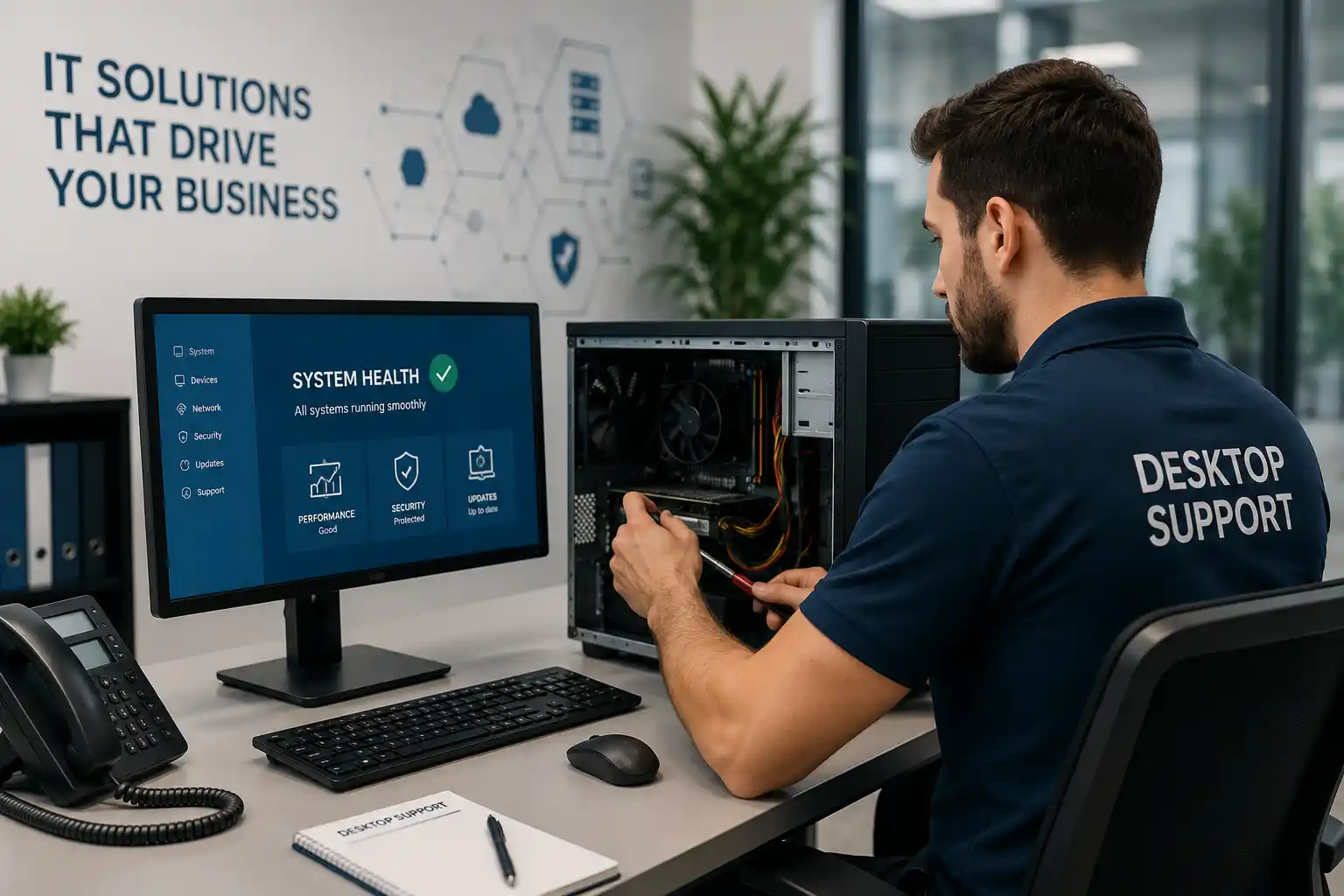
Identify who cannot work and what is blocked.
Method depends on access and the fault type.
Authorisation, backup and rollback matter.
Final work follows assessment and quotation.
What Does Computer Support Help a Business With?
Computer support is the practical assessment, troubleshooting, configuration, maintenance and user assistance needed to keep business desktops and laptops usable for everyday work. It is mainly used when computers are slow, unstable, unable to start, disconnected from company resources, failing to run required applications, affected by account or profile problems, or creating repeated user interruptions. It is also relevant when a business is preparing new workstations, onboarding staff, relocating desks, standardising devices or planning an upgrade. Before work is confirmed, the customer should prepare the affected device details, number of users, operating system, business impact, error messages, recent changes, available administrator access, backup position and any dependency on networks, servers, cloud applications or third-party software. The exact scope depends on the current environment and whether the fault can be investigated securely by remote access or requires physical inspection on site.
What the Service May Cover
Depending on the confirmed scope, computer support may include operating-system troubleshooting, application checks, user-profile issues, login and permission problems, email configuration, printer connections, shared-folder access, browser problems, update failures, endpoint-security alerts, disk-space concerns, startup errors, display and peripheral checks, network connectivity, basic hardware diagnostics and workstation preparation.
Planned work can include new-user setup, approved application installation, device naming, joining the correct business environment, access to shared resources, standard browser configuration, printer mapping, update review, device relocation, data-transfer planning and user handover. A support visit does not automatically include replacement hardware, licensing, specialist application work or data recovery; those items need to be identified and confirmed separately where relevant.
Who May Need Computer Support
The service may suit offices with individual workstation faults, growing teams adding new employees, businesses with recurring desktop complaints, branch locations without a full-time internal technician, organisations moving desks or offices, and companies that need a clearer way to manage workstation maintenance. It can also support an internal IT team that needs additional help with a rollout, a difficult fault, an on-site requirement or a larger group of affected users.
Computer support is especially useful when the business cannot tell whether the problem belongs to the endpoint, the user account, the network, a server, an application or a provider. Treating the workstation as part of the wider environment helps avoid unnecessary device replacement when the actual dependency may be elsewhere.
Common Computer Problems That Need Structured Diagnosis
Business users often report symptoms rather than causes. A computer may be described as slow, frozen, unable to print, disconnected, unable to open a file or repeatedly asking for credentials. Those descriptions are useful starting points, but the same symptom can originate from different technical layers. Slow performance, for example, may relate to low storage space, high memory use, an overloaded startup process, a background update, a failing drive, an application problem, profile corruption, network delay or a cloud service that is responding poorly. A proper assessment separates these possibilities instead of assuming the workstation needs replacement.
Startup and stability faults
Failed boots, restart loops, blue-screen events, freezing, unexpected shutdowns and services that do not start may require review of operating-system events, storage health, drivers, updates, hardware condition and recent changes.
Application and user issues
Applications that crash, fail to open or behave differently for one employee can involve local files, permissions, profiles, updates, licensing, dependencies or vendor-specific requirements.
Connectivity and resource access
Missing shared drives, unavailable printers, weak Wi-Fi, failed VPN access or disconnected applications may involve the workstation, switch port, wireless connection, DNS, DHCP, firewall, server or internet service.
Performance and capacity
A device that worked well previously may slow as storage fills, workloads increase, software changes or hardware ages. The decision to optimise, upgrade or replace should follow evidence and business requirements.
Why Repeated Computer Faults Affect More Than One User
A single workstation incident can delay a quotation, invoice, dispatch, customer response, report, design task or scheduled meeting. When several computers depend on the same network share, authentication service, printer, business application or internet connection, one underlying infrastructure issue can appear as many separate computer complaints. The business impact grows when staff repeatedly stop work, retry the same steps, move between desks, wait for a colleague with administrator access or create temporary workarounds that are not documented.
Leaving recurring faults unresolved can also make future support slower because the environment becomes harder to understand. Unapproved software, inconsistent device names, unmanaged local administrator accounts, unknown data locations, old drivers and undocumented printer settings add uncertainty. Structured support should therefore consider both the immediate incident and the conditions that allow it to return. The goal is not to promise that every future issue will disappear, but to reduce avoidable repetition through diagnosis, safe changes, documentation, user guidance and sensible maintenance recommendations.
Possible Computer Support Scope
The final service scope depends on the affected environment, access, urgency, number of devices and approved quotation. The activities below show the types of assistance that may be relevant after assessment; they are not a statement that every task is automatically included.
Diagnosis
Review symptoms, affected users, operating-system status, event information, resource usage, storage capacity, connectivity, recent changes and application behaviour.
Configuration
Apply approved settings for user profiles, network access, printers, email, shared resources, approved applications, updates or local device configuration where appropriate.
Setup and rollout
Prepare business workstations for named users, install approved software, connect required resources, confirm access and document important details for support.
Maintenance planning
Review update posture, storage headroom, recurring incidents, device age, backup dependencies and replacement priorities so future work can be planned instead of improvised.
Is Computer Support the Right Service for This Situation?
| Business situation | Relevant assistance | What must be confirmed |
|---|---|---|
| One user has a slow or unstable computer | Endpoint health, operating-system and application diagnosis | Symptoms, device details, recent changes and secure access |
| Several users lose access to the same resource | Computer checks plus network, server or service dependency review | Which users, locations and resources are affected |
| New employees need ready-to-use workstations | Planned workstation preparation and user access configuration | Approved applications, accounts, permissions, device ownership and handover plan |
| Old devices create recurring complaints | Condition review, maintenance recommendations and refresh planning | Workload, age, hardware health, software support and budget priorities |
Computer Support Service Information
| Main purpose | Restore or improve business workstation usability through structured assessment, approved corrective work, configuration and maintenance guidance. |
|---|---|
| Typical systems involved | Desktop and laptop hardware, operating systems, user profiles, business applications, email, printers, local network access, shared resources, endpoint security and cloud services. |
| Assessment method | Remote or on-site, depending on secure access, connectivity, fault type and need for physical testing. |
| Customer information | Affected users, device details, symptoms, error messages, recent changes, business impact, access availability and backup status where relevant. |
| Testing and validation | Scope dependent. Validation may include startup, application, login, resource access, network, printer, update and user-acceptance checks. |
| Third-party coordination | May be required when an ISP, cloud provider, specialist software vendor, warranty provider or other technology supplier controls part of the fault path. |
| Commercial scope | Subject to assessment and approved quotation or service agreement. Hardware, parts, licensing and specialist services are not assumed to be included. |
Remote Computer Support or an On-Site Visit?
Remote support can be efficient when the workstation is online, the customer authorises secure access and the issue can be investigated without touching physical equipment. This may include application errors, settings, user-profile checks, software updates, email configuration, printer mapping, permissions, browser problems, event review and some performance issues. A user or administrator may need to remain available to confirm symptoms, approve actions and test the result. Remote access should only be provided through an approved method after the customer confirms identity and authorisation; passwords should not be posted publicly.
On-site support is more appropriate when physical inspection is important. Examples include computers that do not power on, suspected hardware faults, overheating, damaged ports, display or peripheral problems, cabling issues, desk relocation, local printer connections, several affected users, workstation rollout or situations where remote access is not available. On-site work can also help when the technician needs to compare multiple computers, observe the network environment, test a physical connection or coordinate with local staff.
Remote support may fit when
Internet access is working, the workstation can be reached securely, the problem is mainly software or configuration related, physical tests are not required and an authorised user is available to assist with validation.
On-site support may fit when
Hardware, cabling, power, peripherals, multiple endpoints or local environmental factors must be inspected, or when the computer cannot be accessed reliably by remote methods.
The choice between remote and on-site support is not a quality ranking. It is a scope decision. Some incidents begin remotely and later require a visit; others are clearly physical from the start. Scheduling depends on location, engineer availability, site access, the confirmed work and any required equipment or third-party coordination.
How a Computer Fault Is Assessed
A useful support process begins by defining the business problem, not by changing settings immediately. The technician should understand who is affected, what the user was trying to do, when the problem began, whether it is constant or intermittent, and what changed before the issue appeared. That information helps determine whether the fault is isolated to one workstation or may be shared by a wider service.
- Confirm the operational impact. Identify whether one user is inconvenienced, a department is blocked, a business application is unavailable, or a shared resource has failed. This helps prioritise safe diagnostic steps.
- Record the affected environment. Note the computer type, operating system, user account, location, connection method, required applications and any peripherals involved.
- Collect evidence. Error messages, screenshots, timestamps, recent update history, event information and user observations can narrow the fault without relying on guesswork.
- Check recent changes. New software, updates, account changes, office moves, network work, security policies, replaced printers or altered cables may be relevant, although timing alone does not prove a cause.
- Review access and backup considerations. Before changes are made, confirm appropriate authorisation and determine whether important local data, configuration or business information needs protection.
- Test the likely technical layers. This may include system resources, storage health, operating-system services, application behaviour, user profile, network path, shared resources, DNS, printer connectivity, security controls or a third-party service.
- Isolate the probable scope. Compare another user, another workstation, another network connection or another application path where safe and useful. Controlled comparison can show whether the problem follows the user, device, location or service.
- Explain findings before major change. If corrective work carries downtime, data, compatibility or user-impact risk, the customer should understand the proposed action and dependency before proceeding.
- Apply approved corrective work. Changes may involve configuration, software repair, updates, access correction, device setup, hardware replacement planning or escalation to another provider, depending on the confirmed cause.
- Validate and document. Reproduce the original task, confirm the user can work, record changes and note any remaining risks or recommended follow-up actions.
Planning Corrective Work Without Creating a Second Problem
Business computers often contain local files, cached application data, browser settings, certificates, saved connections and user-specific configuration that are not obvious from the outside. An apparently simple action such as resetting a profile, uninstalling software, replacing a drive or changing security settings can affect access or data. Corrective work should therefore be proportional to the evidence and should consider backup, rollback and user impact before changes are made.
Where a fix requires updates, drivers, application repair or a change to access settings, compatibility with the business environment should be considered. A specialist application may depend on a specific release, add-in or database connection. A printer may be shared from another system. A finance or design application may require vendor support. A VPN may depend on a firewall policy and user credential that the workstation itself does not control. The correct action may therefore be to coordinate with another party rather than forcing a local workaround.
For planned work, the customer may need to approve a maintenance window, arrange user availability, confirm backups, provide licensing information or authorise access to relevant systems. The final quotation should clearly state what is included, what is dependent on third parties and what would require separate approval.
Testing, User Validation and Handover
A computer that starts successfully is not automatically ready for business use. Validation should return to the task that originally failed. If the issue involved printing, the relevant user should confirm the correct printer and document path. If it involved an application, the application should open and reach the resources it needs. If it involved shared files, permissions and network access should be checked. If it involved email or a cloud service, the user should confirm normal sign-in and the required workflow.
For a newly prepared workstation, testing may include user login, network connectivity, approved applications, shared folders, printer access, browser requirements, collaboration tools, peripheral devices, updates and endpoint-security status. The exact checklist depends on the role. A reception workstation, design computer, accounts computer and warehouse terminal may have very different dependencies.
Handover should record useful information rather than only stating that the device was fixed. Notes can include the reported symptom, relevant findings, changes completed, items tested, remaining risks, user actions, provider dependencies and recommended follow-up. Documentation makes later support easier and gives managers a clearer basis for deciding whether repeated incidents justify maintenance, standardisation or device replacement.
Three Outcomes That Matter in Business Computer Support
Faster fault isolation through context
When support looks at the user, computer, network and required service together, it becomes easier to determine where a problem actually sits. If only one user is affected across multiple devices, the account or profile becomes more relevant. If several users fail to reach one application, the common dependency deserves attention. If the problem appears only at one desk, the physical connection or local equipment may matter.
This does not guarantee a quick diagnosis, because intermittent faults and third-party services can require further evidence. It does, however, reduce random changes and helps the customer understand what should be tested next.
Safer and more repeatable workstation changes
Business computers are easier to support when approved applications, user permissions, device names, update practices and access methods are consistent. Standardisation does not mean every employee needs identical hardware; it means important configuration decisions are deliberate and documented.
A support engagement can identify differences that create repeated incidents, such as multiple versions of the same application, unclear local administrator use, inconsistent printer setup or unmanaged storage. Corrective recommendations should remain compatible with business workflows and should be approved before broad rollout.
Better decisions about repair, upgrade or replacement
Not every slow computer requires replacement, and not every old computer is economical to keep. The decision should consider hardware health, operating-system support, application requirements, workload, repair history, warranty status, user role and business risk.
A support assessment can separate an isolated software issue from a capacity problem or failing component. If replacement is more appropriate, data transfer, application compatibility, licensing and user handover still need planning. The final choice remains subject to the customer’s priorities, budget and confirmed technical requirements.
Dependencies, Access and Customer Inputs
Computer support often crosses organisational boundaries. The workstation may rely on an internet provider, firewall, switch, Wi-Fi system, server, cloud platform, identity service, printer, application vendor or remote-access service. The technician needs enough information to understand those relationships without assuming control over systems that belong to another provider.
Customers should identify an authorised contact who can approve access and changes. Administrative access may be required for some troubleshooting or configuration work, but credentials should only be shared through an approved secure method after identity and authorisation are confirmed. Public web pages, ordinary chat messages and unsecured notes are not appropriate places for passwords or private keys.
Useful inputs can include the device name or model, operating-system version, affected user, error text, business application, recent changes, network location, internet status, printer or peripheral details, existing vendor contact, licensing information, backup status and the time window in which changes can be made. For multi-device incidents, a simple list of affected and unaffected users can be especially valuable because it reveals patterns. Where access cannot be provided, the available diagnostic options may be limited and the scope may need to focus on observation, local testing or coordination with the system owner.
Risks, Limitations and Exclusions to Confirm
Diagnosis depends on the evidence, access and condition of the device. An intermittent fault may not appear during a short assessment. A hardware failure may require parts, workshop testing, warranty service or replacement outside the support labour scope. Specialist software may need the application vendor. Internet, cloud or hosted-service problems may require provider action even when the symptom is visible on the computer.
Configuration changes can affect user access or application behaviour, especially on older or undocumented environments. Where practical, important data and settings should be protected before disruptive changes, and a rollback path should be considered. Unsupported operating systems or legacy applications may limit safe options. Data recovery cannot be guaranteed, and a support visit should not be treated as a substitute for an appropriate backup strategy.
A successful test confirms the condition observed at that time; it does not remove the need for future updates, monitoring or maintenance. On-site work depends on location, building access, scheduling, engineer availability, site conditions and the approved scope. Final commercial terms, parts, licenses, replacement equipment and provider charges should be confirmed in the quotation or service agreement.
Business Environments Where Computer Support Is Useful
The practical meaning of computer support changes with the workplace. In a professional office, reliable access to email, shared documents, printers and line-of-business applications may be the priority. In a retail location, point-of-sale terminals, receipt printers, inventory applications and network connectivity may be more critical. A clinic may depend on scheduled appointments, document scanning and secure access to practice systems. A warehouse may use fixed workstations for labels, stock records and dispatch operations. In each case, the computer is one link in a wider workflow.
Multi-branch businesses need additional consistency because an issue at one location may be caused by local cabling, local internet, a shared cloud application or a central service. Support should identify what is unique to the affected site and what is common across the organisation. Hybrid teams introduce another set of dependencies, including home networks, VPN access, laptop mobility and collaboration tools. The service scope may therefore differ between office users and remote users even when they run the same applications.
Schools, training centres, hospitality sites, property offices, construction teams and logistics operations can also benefit from planned workstation support where user turnover, shared devices, temporary locations or specialised peripherals create recurring support needs. The relevant assessment should follow the actual business workflow rather than apply a generic computer checklist to every environment.
Operational, Security and Maintenance Considerations
A dependable workstation environment is easier to maintain when ownership, access and update responsibilities are clear. Businesses should know which computers are active, who uses them, what applications are important, whether local data exists, how devices connect to company resources and which party supports each dependency. This information reduces uncertainty during an incident and makes replacements or staff changes easier to plan.
Security should be treated as an operating condition rather than a single setting. Appropriate access controls, supported software, regular updates, endpoint protection, controlled administrator rights and secure remote access all contribute to risk reduction. No single change can guarantee complete protection. Where a warning, suspicious process or possible incident is reported, the response should preserve useful evidence and avoid broad destructive changes until the situation is understood.
Maintenance can include reviewing disk space, update status, recurring event warnings, device health, application versions, hardware age and user complaints. The frequency and depth depend on the business, device count, criticality and service agreement. Some organisations may prefer periodic health reviews, while others need ongoing managed support. The important point is that recurring faults should be recorded and reviewed, because several small incidents may reveal a wider standardisation, capacity or lifecycle problem.
Before You Contact FourTeck
Preparing a few details can make the first assessment more useful. Exact information is more valuable than a long description, and it is acceptable to say when something is unknown.
- The Dubai or UAE service location and building-access requirements.
- A main authorised contact for technical questions and approvals.
- How many users and computers are affected.
- The computer type, model if known and operating system.
- The exact symptom, error message and user task that fails.
- When the problem started and whether it is continuous or intermittent.
- Any recent software, account, network, office or hardware changes.
- Whether internet and local network access are working.
- The business applications, printers or shared resources involved.
- Whether authorised administrator access can be arranged securely.
- Relevant licensing or vendor details where specialist software is involved.
- The backup status of important local data where known.
- The operational urgency and which business tasks are blocked.
- Whether remote troubleshooting is acceptable and technically possible.
- Any preferred maintenance window or user-availability constraint.
- The result you want: restore service, stabilise the device, prepare a replacement, standardise setup or plan ongoing maintenance.
Computer Support Scope Checklist for a Quotation
Before a quotation or engagement is finalised, it is useful to confirm the boundaries of the work. This helps the customer compare the proposed service with the actual business need.
These items define the engagement; they do not imply that each is included automatically. FourTeck can confirm which activities belong in the proposed scope after the initial information is reviewed.
How FourTeck Can Assist
FourTeck can help clarify the reported computer problem, identify the systems and users affected, decide whether remote or on-site assessment is appropriate, review the available evidence and define the practical next step. Depending on the confirmed scope, assistance may include workstation troubleshooting, operating-system and application checks, user access review, network connectivity testing, printer and peripheral configuration, approved software setup, workstation preparation, device relocation support, testing, documentation and maintenance recommendations.
When the problem crosses into another system, FourTeck can help organise the technical information required for escalation. For example, a computer may be functioning correctly while a cloud application, ISP connection, server share, firewall path or specialist application service is unavailable. Coordinating the evidence can help the customer avoid repeated conversations between separate suppliers.
The quotation should reflect the actual work required rather than assume a generic support package. Customers can review the broader FourTeck IT support approach, explore the IT services overview, or read more about FourTeck IT Services before requesting a scope.
Dubai and UAE Computer Support Coordination
For a Dubai business, the practical service plan depends on the issue, access, urgency, device count and whether the work can be completed remotely. A software or user-account problem may be suitable for remote troubleshooting when the computer has stable internet access and authorised secure access can be arranged. A dead computer, cabling problem, physical peripheral issue, multi-device rollout or office relocation may require on-site assistance.
Service timing should be confirmed rather than assumed. Engineer availability, customer access, building rules, site conditions, required hardware, specialist software, third-party providers and the approved scope can all affect scheduling. If the work involves a disruptive change, the business may also need to agree a maintenance window and ensure that the relevant users are available for final testing.
Computer support can be a one-time incident response, a planned setup project or part of an ongoing maintenance arrangement. The quotation should state which option is being provided and whether follow-up, recurring checks, additional sites, replacement parts or external provider work are included.
Service Coordination Across Dubai, Abu Dhabi, Sharjah and Ajman
Businesses with users or offices in Dubai, Abu Dhabi, Sharjah and Ajman may need a combination of remote troubleshooting and planned on-site work. A central business application can affect users in several emirates at once, while a local switch port, workstation, printer or cabling fault may affect only one site. The support process should distinguish common dependencies from location-specific issues before travel or replacement decisions are made.
Where on-site work is required, scheduling, travel, building access, parking or loading rules, local contact availability, equipment readiness and third-party appointments can influence the service plan. Multi-site rollout or maintenance work may benefit from an agreed checklist so each location is tested consistently and exceptions are documented. Contact FourTeck to confirm which locations, devices and tasks are included in the requested support scope rather than assuming permanent coverage or a fixed attendance time.
Related FourTeck IT Services
For workstation faults, user setup, device maintenance and endpoint troubleshooting.Office network and Wi-Fi support
For connectivity problems that affect computers, printers, shared resources or cloud access.Server and business IT services
For shared infrastructure, user access, applications, storage and wider technology planning.
Why Businesses Contact FourTeck for Computer Support
A useful support provider should help the customer understand whether the problem belongs to the computer or to a dependency around it. FourTeck approaches business endpoints as part of the connected workplace: users need accounts, applications need services, printers need network paths, computers need updates and security controls, and many workflows depend on servers or cloud platforms. This broader view is especially important when a symptom appears on the desktop but the cause is elsewhere.
Businesses may also need support for planned work rather than a fault. Preparing users, moving desks, replacing computers, standardising configurations and documenting devices all benefit from a defined process. FourTeck can help structure the assessment, identify access and dependency requirements, carry out approved work, validate the user workflow and record what changed. Where the final action depends on another vendor or on replacement equipment, that dependency can be identified rather than hidden inside an unsupported promise.
The objective is practical assistance with a clear next step: resolve the issue where possible, define what remains, identify the responsible system or provider, and give the business information it can use for maintenance, replacement or future support decisions.
Questions Businesses Ask Before Requesting Computer Support
The questions below reflect the decisions a business normally needs to make before asking for computer support, approving a visit or deciding whether a one-time fix is enough. The answers are intentionally conditional because the correct approach depends on the evidence and the working environment.
Can a slow office computer be fixed remotely?
Often it can be assessed remotely, but the likely path depends on what is causing the slowdown. A technician can review running processes, memory use, storage capacity, startup items, operating-system events, updates and application behaviour when secure remote access is available. If the device shows signs of hardware failure, overheating, damaged ports, unusual noise or unreliable connectivity, a physical inspection may be more appropriate. The customer should prepare the device details, the time the problem occurs, the applications affected and any recent changes. A slow computer should not automatically be reformatted or replaced without first considering the evidence and the value of local data.
How do we know whether the problem is the computer or the network?
Compare scope and symptoms. If one workstation cannot reach a shared folder while nearby computers can, the local device, user account, cable or port becomes more relevant. If many users lose the same service at once, a shared network, server, firewall, internet or cloud dependency deserves attention. Tests may include local connectivity, address configuration, gateway reachability, DNS behaviour and access from another endpoint. These checks should be controlled so they do not disrupt working systems. The goal is to determine where the problem changes, not to make random adjustments to every layer.
Should we repair an old business computer or replace it?
The decision should follow workload, hardware condition, operating-system support, application compatibility, repair history and business impact. A device with a small configuration problem may remain useful, while a workstation with recurring hardware faults, insufficient capacity or unsupported software may create repeated cost and interruption. Replacement also has its own work: data may need to be transferred, applications installed, licenses confirmed, user access recreated, printers connected and old equipment handled securely. A support assessment can provide the technical information needed for the business to compare these options, but the final choice depends on budget and operational priorities.
What information helps when a computer shows an error message?
The exact wording and timing are valuable. Record the full message, take a screenshot where permitted, note the application being used and explain what the user did immediately before it appeared. Also mention whether the error affects one user or several, whether it happens every time and whether any software, password, update or network change occurred recently. Avoid repeatedly dismissing or clearing an error if it may contain useful diagnostic information. If the message involves possible security compromise, sensitive data or account access, report it through the organisation’s approved support process rather than posting private information publicly.
When is an on-site computer support visit usually needed?
A visit is usually more appropriate when the fault requires hardware inspection, power checks, physical ports, cabling, monitor or peripheral testing, desk moves, multiple local devices or work that cannot be performed through secure remote access. On-site assistance may also help when the problem is intermittent and tied to a particular location, switch port, wireless area or peripheral. For planned work, a visit may be needed to prepare a group of workstations, label equipment, move user devices or test an office setup after changes. Attendance timing must be confirmed based on location, access and approved scope.
Is one-time support enough, or should we consider maintenance?
One-time support can suit an isolated incident or a clearly defined project. Maintenance becomes more relevant when the same users repeatedly report slow devices, update problems, storage issues, failing peripherals or configuration inconsistencies. Recurring incidents may indicate that the business needs a device inventory, standard workstation build, lifecycle plan, periodic health review or clearer user-support process. An ongoing arrangement should specify the covered users, devices, locations, tasks, exclusions and commercial terms. It should not be assumed to include unlimited support, replacement parts or every third-party service unless those items are explicitly agreed.
Can FourTeck set up computers for new employees?
New-user workstation preparation can be part of the service when the requirements are confirmed. The business should provide the employee role, approved applications, required email or collaboration services, printers, shared folders, browser or web applications, security requirements and any specialist peripherals. Account creation and licensing may depend on systems or providers outside the workstation itself. A useful handover checks that the user can sign in, reach required resources and understands any organisation-specific access steps. The exact build process should be documented when multiple employees need a consistent setup.
What should we do before replacing a computer that contains business data?
First identify what data is stored locally and what already exists in an approved server, cloud or backup location. Confirm the business owner of the data, the required applications, browser data, user files and any specialist configuration. Where possible, verify the backup or transfer plan before removing a drive, resetting the computer or retiring the device. Some applications store important data in locations users do not recognise. Secure retirement also needs consideration so old equipment does not retain accessible business information. Data-recovery success cannot be guaranteed, so replacement planning should not rely on recovery after a destructive change.
Why can a printer problem be part of computer support?
Printing depends on more than the printer. The workstation needs the correct driver or connection, the print queue must be healthy, the user must have access, the network path must be available and the printer must have the expected address or shared name. A problem that affects only one computer may be local, while a problem that affects an entire department may sit on a print server, network segment or printer itself. Computer support can test the workstation side and help identify when the problem needs a printer technician, network change or vendor escalation.
What can affect the final computer support quotation?
Scope is influenced by the number of devices and users, whether the fault is isolated or widespread, remote-access availability, the need for an on-site visit, hardware testing, business applications, data-transfer work, third-party coordination, building access, requested documentation and whether support is one-time or ongoing. Replacement parts, software licenses, specialist vendor charges and work outside the assessed scope may require separate approval. A clear quotation should identify assumptions and dependencies so the customer can see what is and is not included.
Can a computer be fixed without administrator access?
Some user-level checks can be performed without administrator rights, but many configuration changes, software repairs, driver actions and system-level diagnostics require authorised administrative access. The support process should not bypass access controls. Instead, the business should arrange the appropriate account or involve the person responsible for the environment. Credentials should be exchanged only through an approved secure method. If access cannot be provided, the assessment may need to be limited to observation and non-privileged tests until authorisation is available.
What happens after a computer support issue is resolved?
The original business task should be tested, not just the technical component. The user should confirm that the required application, printer, file, login or connection works as expected. The technician should record important changes, remaining risks and any follow-up recommendation. If the incident exposed a wider issue, such as several aging computers, poor documentation, recurring network drops or inconsistent application versions, the business can decide whether to schedule a separate assessment. A successful one-time repair does not remove the need for backups, updates, lifecycle planning or future maintenance.
How should a business prepare for computer support across several UAE offices?
Start with a simple inventory of sites, affected devices, local contacts and shared systems. Identify whether each location uses the same applications, network design and provider, and note any site-specific printers, peripherals or access restrictions. Remote assessment can help find patterns before an on-site schedule is planned. If physical work is needed, group tasks by location and confirm building access, user availability and equipment readiness. Multi-site support is easier to manage when findings and completed changes are documented consistently instead of being treated as unrelated local incidents.
Frequently Asked Questions
What does business computer support normally include?
It may include diagnosis, operating-system and application checks, user access, connectivity, printer or peripheral setup, approved configuration work, workstation preparation, testing and documentation. The exact tasks depend on assessment and quotation.
Can you support both desktops and laptops?
Computer support can cover both endpoint types when they are included in the agreed scope. Laptops may introduce additional battery, charging, wireless, mobility and remote-work considerations.
Do we need to know the cause before asking for support?
No. Describe the symptom, affected users, timing, business impact and recent changes. The assessment is intended to determine which technical layer needs attention.
Will remote support solve every computer issue?
No. Remote methods are useful for many software and configuration problems, but physical hardware, cabling, power, peripheral and local environment issues may require on-site inspection.
Can support include software installation?
Approved software installation can be included when licensing, compatibility, access and the required version are confirmed. Specialist applications may require vendor involvement.
What if the problem is actually with our internet or server?
The computer can still be used as a diagnostic point. If evidence shows that a shared network, server, cloud or provider service is responsible, the next step may be wider IT support or coordination with the relevant provider.
Can you guarantee that data will be recovered from a failed computer?
No. Recovery depends on the failure type, storage condition, encryption, prior damage and available backups. Data recovery should be treated as a separate assessed requirement where applicable.
Do you provide on-site computer support in Dubai?
On-site assistance may be arranged when the issue and approved scope require physical work. Scheduling depends on location, access, engineer availability and the work to be completed.
Can a business request support for several computers at once?
Yes, subject to assessment. A device list, affected-user summary, common symptoms and site details help determine whether the work is an incident, a rollout, a maintenance task or a broader infrastructure problem.
Is documentation available after support work?
Documentation can form part of the agreed scope. Useful records may include findings, changes, tests, device details, remaining risks and recommended next actions.
Request a Computer Support Assessment
If a business computer is interrupting work, or if several workstations need planned setup, maintenance or replacement preparation, provide FourTeck with the affected users, devices, symptoms, location, recent changes and business priority. FourTeck can review whether remote troubleshooting is appropriate or whether the job needs an on-site assessment. The final service plan and commercial scope depend on access, current configuration, required work, third-party involvement and the approved quotation.